Consignment Location Sales
Load Virtual Consignment Store Sales
The Load Virtual Consignment Store Sales screen is used to record sales for virtual consignment locations. These locations represent external stores or partners that are not part of your company but hold stock on consignment. Stock can be transferred to these locations, and sales are later loaded back into Ramsys using this screen.
This process ensures:
- Accurate reduction of consignment stock
- Correct sales values recorded against the virtual location
- Proper reporting of consignment performance
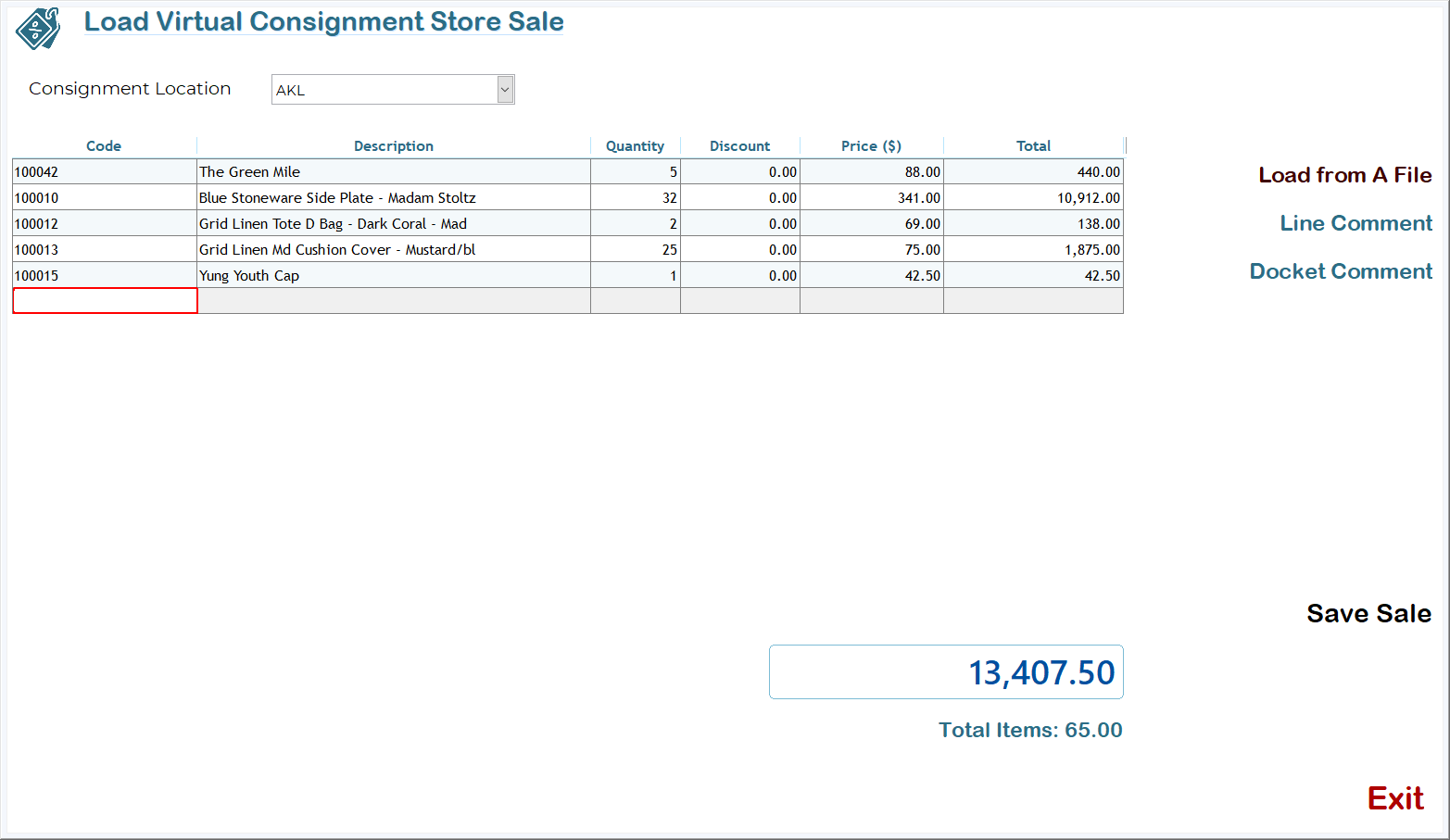
Consignment Location
- Select the virtual store/location from the dropdown list (e.g. AKL).
- Only locations configured as Virtual / Consignment will appear.
- All sales entered on this screen will be applied to the selected location.
⚠️ Ensure the correct location is selected before entering sales, as this affects stock levels and reporting.
Sales Entry Grid
The main grid is used to enter the items sold by the virtual store.
|
Column |
Description |
|
Code |
Stock code of the item sold. Enter or scan the code, you may also type all or part of the description or manufacturers code. |
|
Description |
Automatically populated from the stock master. |
|
Quantity |
Quantity sold by the consignment location. |
|
Discount |
Discount applied per unit (if applicable) Automatically populated. |
|
Price ($) |
Sale price per unit. Defaults from stock pricing but can be adjusted if allowed. |
|
Total |
Line total (Quantity × Price − Discount) Automatically populated. |
- Enter the stock code to add a new line.
- Quantities reduce stock held at the selected virtual location.
- Multiple lines can be entered per sale.
- Validation ensures only valid stock items can be loaded.
Totals Panel
Located at the bottom right of the screen:
- Total Sale Value
- Displays the total dollar value of all entered lines.
- Total Items
- Shows the total quantity of items sold across all lines.
These values update automatically as lines are added or edited.
Sales Options
The Sales Options panel (right-hand side) provides access to any additional actions or settings related to the sale, depending on system configuration.
- Load from a file - upload and import a file into the grid.
- Line Comment - Add a comment to the selected line.
- Docket Comment - Add a Comment to the entire Docket.
Save Sale
- Commits the sale to Ramsys.
- Allows you to enter a reference for the sale.
- Reduces consignment stock from the selected virtual location.
- Records the transaction for reporting and reconciliation.
- Allows you to print an Invoice and/or a packing slip.
Once saved, the sale becomes part of the system’s transaction history.
Exit
- Closes the screen.
- If there are unsaved changes, you will be prompted to confirm before exiting.
Typical Workflow
- Select the Consignment Location.
- Enter sold items into the grid using stock codes.
- Verify quantities, prices, and totals.
- Review the total sale value and item count.
- Click Save Sale to finalise the transaction.
Important Notes
- Virtual consignment locations do not represent company-owned stores.
- Stock must already exist at the virtual location before sales can be loaded.
- This screen is intended for post-sale loading, not live POS entry.
This process provides full traceability of consignment stock movements and sales performance within Ramsys.