Modifier Maintainance
Modifier Group Maintenance
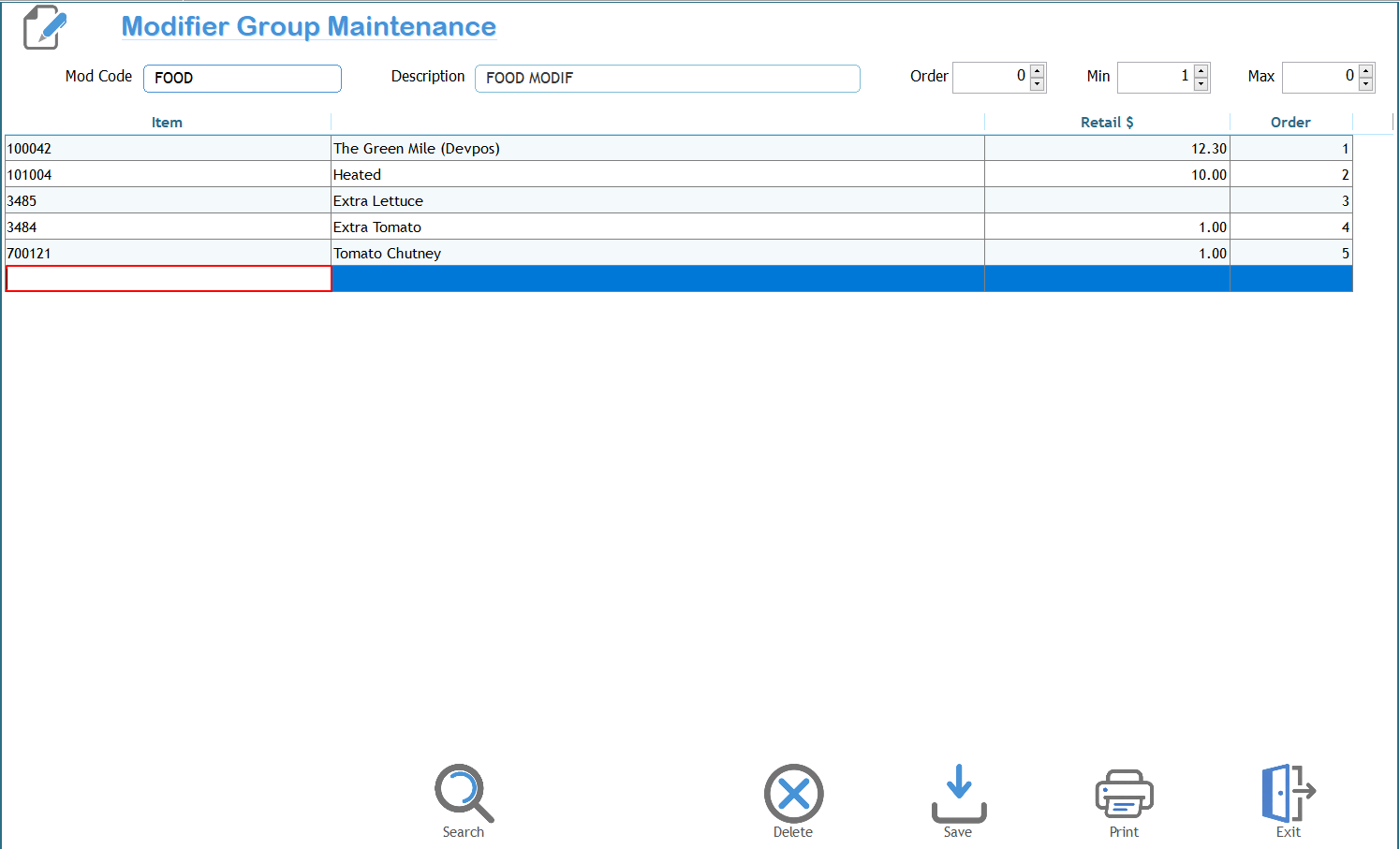
The Modifier Group Maintenance screen is used to create and maintain groups of optional items that can be selected when selling a product. Modifier groups are commonly used for food and beverage businesses to offer choices such as extra toppings, sauces, cooking preferences, or meal upgrades.
|
|
Description |
|
Mod Code |
A unique code that identifies the modifier group. For example, FOOD. |
|
Description |
A meaningful description of the modifier group. This is displayed when maintaining the group. |
|
Order |
Controls the order in which this modifier group is displayed if multiple groups are attached to the same item. Lower numbers appear first. |
|
Min |
The minimum number of modifiers that must be selected. Set to 0 if selection is optional. |
|
Max |
The maximum number of modifiers that can be selected. Set to 0 for no maximum limit. |
Modifier Items
Each row represents an item that can be selected from this modifier group.
|
|
Description |
|
Item |
Enter the stock item to be used as the modifier. To search for an item, simply start typing the ISC, manufacturer code, barcode, or description, then press Enter. The system will display all matching items, with the results becoming more refined as you type. |
|
Retail $ |
Displays the selling price of the modifier item. This is taken from the stock item but you may modify it. |
|
Order |
Determines the display order of the modifier within the group. |
Adding Modifier Items
- Move to the blank line at the bottom of the grid.
- Enter the stock item by typing the ISC, manufacturer code, barcode, or description, then press Enter.
- A list of matching items will be displayed. As you type, the list becomes more refined.
- Select the required item and press Enter.
- To add another modifier, press Enter while in the last column of the current row. A new blank line is automatically created.
Example
A modifier group called FOOD MODIF might contain:
- Heated
- Extra Lettuce
- Extra Tomato
- Tomato Chutney
When this modifier group is attached to a stock item, the operator will be prompted to select from these options during the sale. The Min and Max settings control how many choices the customer is required or permitted to make.