Enter Manual Order
Operations/Enter Manual Order
The Stock Order Entry screen is used to create supplier purchase orders quickly and accurately. It provides all the information required to determine what stock should be ordered, including current stock on hand, quantities already on order, sales history, pack sizes, costs and supplier information.
The screen can be used to:
- Create a new supplier purchase order.
- Order individual stock items.
- Automatically generate an order using Min/Max stock levels.
- Order for one or more store locations.
- Review supplier costs before committing an order.
- Print or email purchase orders to suppliers.
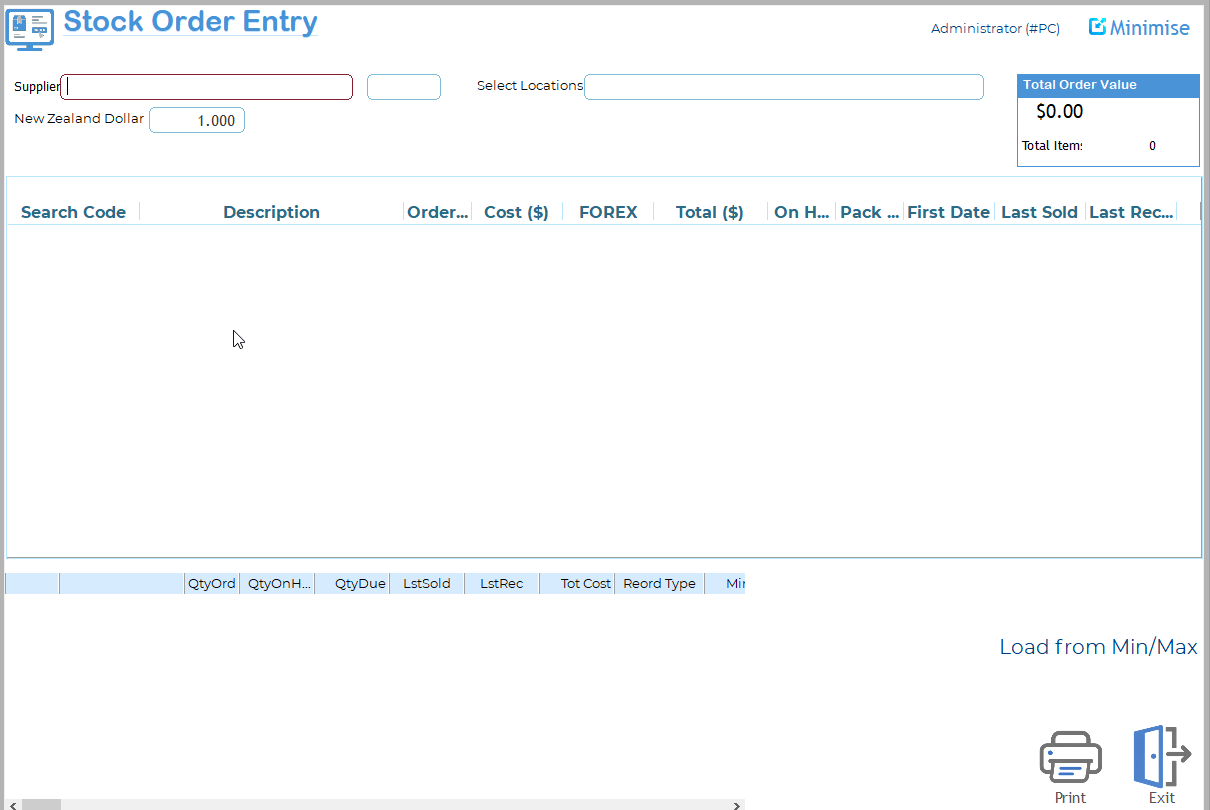
The Manual Order Entry page allows you to enter orders manually for stores at any time.
Supplier Selection
The first field allows you to select a supplier. Please note that selecting a supplier means that only items from that supplier will be available for ordering. You must select a supplier to place an order. To search for a supplier, type as much as you know of the supplier code or name. The system will return either the specific supplier or a list of suppliers that match your filter criteria. The standard search capability is also available. Once a valid supplier is entered, the system will advance you to the items list.
Location Selection
Next, select the location you are ordering for. These are the locations set up in the Location Master as able to receive orders. If you are ordering for multiple locations, please refer to the stock level weighting instructions. If only one location is set to receive orders, this field will be prefilled.
Item Entry
Enter items to order by typing all or part of the ISC, description, manufacturer code, or barcode. The description of the item and the current cost will be displayed. Enter the quantity you wish to order. If ordering for multiple locations, this quantity will be split across the stores according to the location weight. You can modify these individual splits in the lower table.
Note the standard searching for stock is also available.
Load from MinMax
The Load from Min/Max function automatically builds a purchase order using the minimum and maximum stock levels defined for each product.
Rather than manually deciding how much to order, Ramsys analyses each item's current stock position and recommends replenishment quantities.
The principle is simple:
- Each item has a Minimum stock level.
- Each item has a Maximum stock level.
- When stock falls to or below the Minimum level, Ramsys recommends ordering enough to bring stock back up to the Maximum level.
Saving the Order
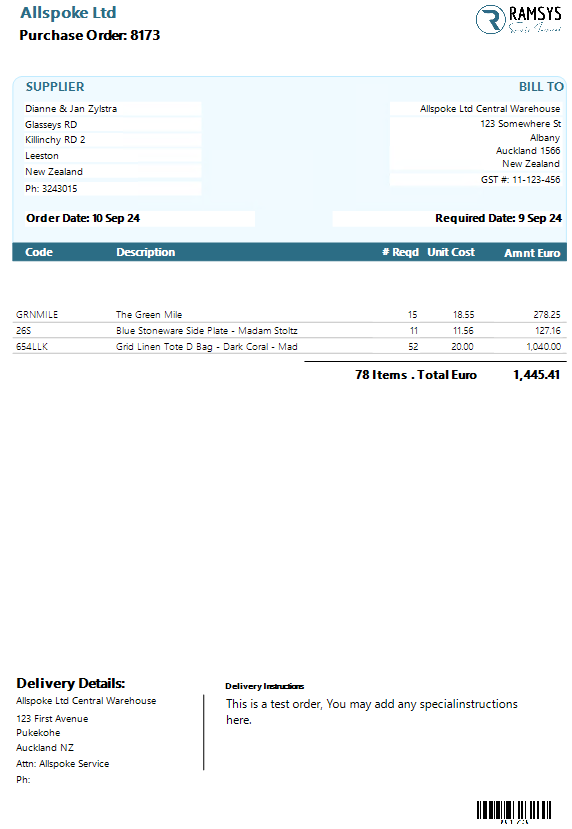
Once all items are entered, click the <<Save Order>> button. You will then proceed to the order detail page. Fill in any relevant data and press <<Save>>. You will be asked if you wish to email the order directly. If you choose not to email it, the order will be displayed on the screen, where you may choose to save, print, or email it.