About POS
POS Help / About Screen
The Ramsys Point of Sale (POS) Help/About screen provides a quick reference for system information, licensing details, support links, and diagnostic data. This page explains each section so users can easily understand what the screen is showing and how to use it.

This screen is accessible off the main menu by tapping/Clicking the '?' button
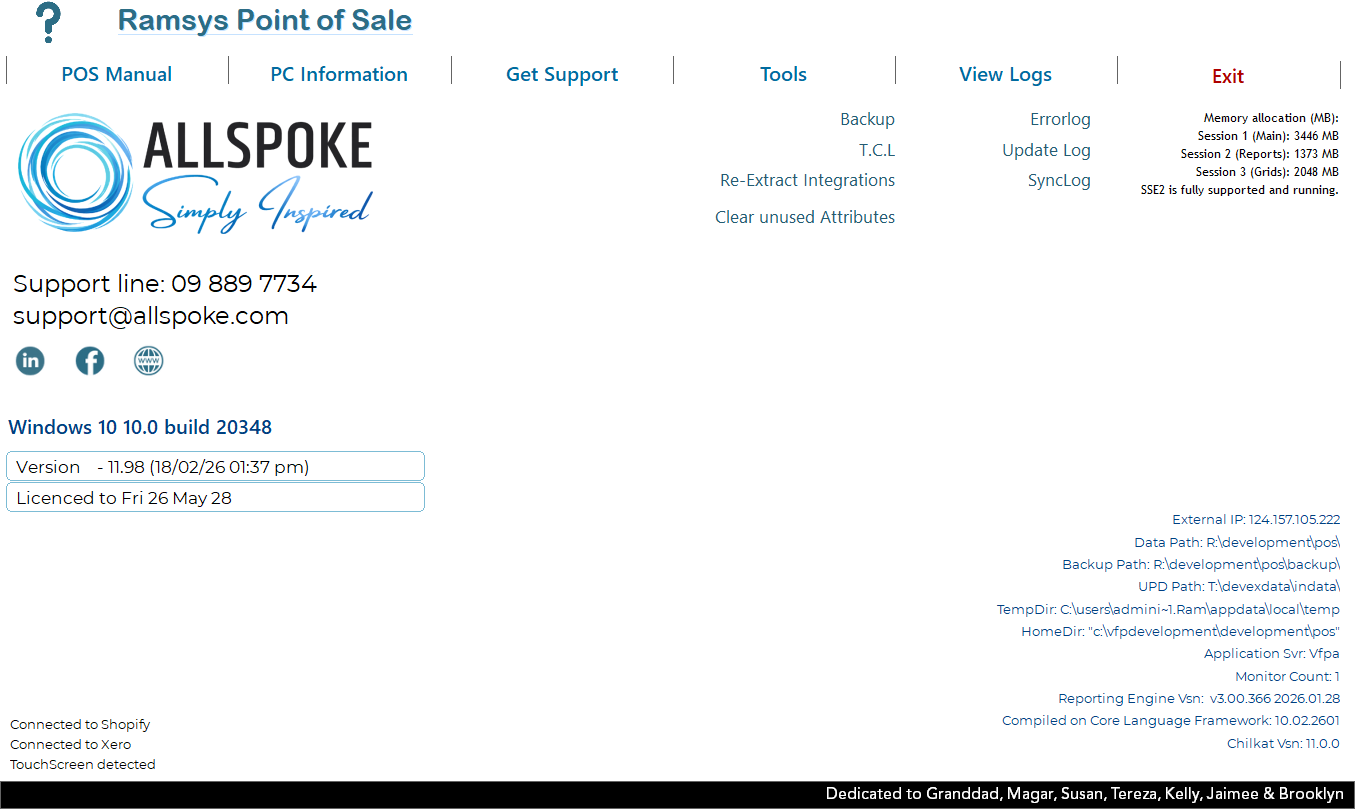
1. Version Information
At the top of the screen, the current POS version is displayed prominently:
- Vsn: Shows the installed version of Ramsys POS (e.g., 11.98).
- Build Date/Time: Indicates when the version currently running was built.
- Licence Expiry: Shows the date your licence is valid until.
This information is essential when contacting support or confirming updates.
2. System Connectivity
If the POS is connected to online services, icons will show the connection status for Shopify, when connected, these indicate that synchronisation and integrations are active.
3. System & Operating Environment
Information about the POS environment will be shown, including:
- Windows version and build number
- Application directories: data paths, backup paths, update paths
- Temporary directories and home directories
- External IP address
- Application engine version (The version of the Codebase Ramsys is written in)
- Reporting engine version
- This section is mainly used for support and diagnostic purposes.
4. Memory Allocation (Sessions)
The screen displays memory usage for each internal session the POS uses:
- Session 1 (Main)
- Session 2 (Reports)
- Session 3 (Grids)
These numbers help diagnose performance issues and confirm SSE2 support.
5. Support Information
Important contact information is displayed clearly:
- Website: www.allspoke.com
- Support line: 09 889 7734
- Support email: support@allspoke.com
This is your first point of reference for technical help or questions.
6. Tools Menu
Quick access to common maintenance and administrative tools:
- Backup – Opens system backup options and performs a backup now.
- T.C.L – Tax Code List or other tool based on configuration used by our Technicians only.
- Re-Extract Integrations – Rebuilds connected service data.
- Clear Unused Attributes – Cleans unused stock attributes deleting them permanently.
These tools help keep your system running smoothly.
7. View Logs
Essential for troubleshooting:
- Errorlog – Shows recent errors, this will also allow you to email the errorlog to support
- Update Log – Displays POS update history
- SyncLog – Shows external integration synchronisation events
Support may request these logs when diagnosing issues.
8. Touch Mode Settings
The system automatically detects touch screen capability. If a touch screen is detected:
- A checkbox will appear: Run POS in touch screen mode
- When enabled, the POS interface adjusts to larger buttons and simplified navigation for ease of use. You may check this on and off.
9. Branding & Credits
At the bottom of the screen you may see branding materials including:
- ALLSPOKE – Simply Inspired
- Ramsys Central POS branding
- New Zealand Made certification
- Dedication message recognising contributors
These elements identify the system and acknowledge its heritage.
Purpose of the Help/About Screen
This screen serves several important functions:
- Fast diagnostic reference for support staff and power users.
- Confirmation of software version & licensing.
- Visibility of system integrations such as Shopify.
- Immediate access to tools and logs to assist with troubleshooting.
- Support contact information always visible and accessible.
If you need assistance interpreting anything on this screen, please contact Allspoke Support. Our team will guide you through system status, updates, or troubleshooting as required.