Extract to Accounts
Extract Data to Xero
This screen is used to extract sales data from Ramsys and create invoices in Xero. The process groups transactions by customer/contact and uploads them to Xero as invoices within the selected date range.
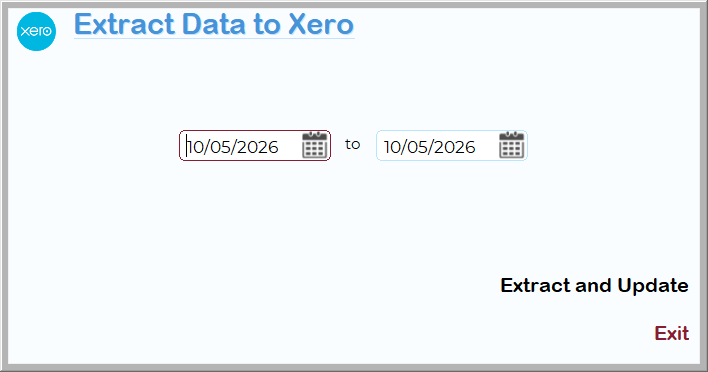
Screen Overview
- From Date — Start date for the extraction range.
- To Date — End date for the extraction range.
- Extract and Update — Begins the export process and sends invoice data to Xero.
- Exit — Closes the screen without processing.
The system processes all eligible records for the selected dates. If a date range greater than one day is selected, Ramsys will create a separate invoice for each individual day within the range. This ensures consistency and makes reconciliation simpler and more accurate for staff.
How the Process Works
When Extract and Update is selected, Ramsys performs the following steps:
- Selects the relevant data.
- Establishes a connection to Xero.
- Groups transactions by:
- Contact
- Reference
- Cash Sale flag
- Builds the invoice JSON payload for each contact.
- Generates an idempotency key to prevent duplicate invoice creation.
- Uploads invoices to Xero using the API.
- Logs all requests and responses for audit and troubleshooting purposes.
- If the invoice is successfully authorised in Xero:
- The system automatically creates related payment records.
- If the invoice cannot be created or authorised:
- The process is logged as skipped or failed.
Important Notes
Duplicate Protection
The extraction uses an idempotency key to help prevent duplicate invoices from being created in Xero if the process is accidentally run more than once.
Payment Handling
Payments are only created after Xero successfully returns a valid authorised invoice.
Bank Reconciliation
Xero may still manage payment reconciliation separately through:
- Bank feeds
- Bank rules
- Manual reconciliation processes
Logging
All API requests and responses are written to the Xero log system to assist with:
- Error diagnosis
- Audit tracking
- Support troubleshooting
Typical Workflow
- Open Extract Data to Xero
- Enter the required date range
- Select Extract and Update
- Wait for processing to complete
- Example
If the selected range is:
- From: 01/05/2026
- To: 10/05/2026
Ramsys will:
- Find all matching records in the Database.
- Group them by contact
- Create invoices in Xero
- Create payments for successfully authorised invoices
Troubleshooting
|
Issue |
Possible Cause |
|
No invoices exported |
No records exist in the Database for the selected dates |
|
Duplicate invoices avoided |
Existing idempotency key already processed |
|
Payments not created |
Invoice was not authorised by Xero |
|
Export fails |
Connection or API issue with Xero |
|
Some invoices skipped |
Invalid contact or invoice data |