Previewing Reports
Report Preview & Printing in Ramsys
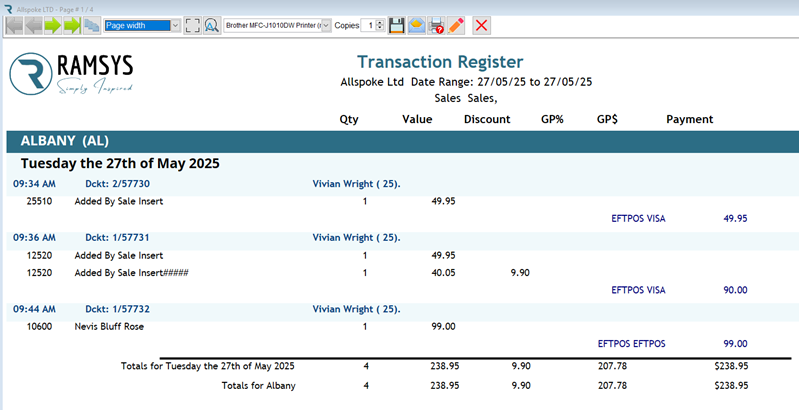
Ramsys provides an advanced, user-friendly report experience. This includes powerful features like searchable HTML previews, direct emailing, annotations, and exporting in multiple formats.
Whether you're printing invoices, summaries, or customer data, FoxyPreviewer helps you see exactly what will print and gives you options to customise the output. This guide will walk you through the basics
Think of it as a "preview window" for your reports. Instead of printing directly and hoping everything looks right, you can see the report on your screen first. You can zoom in to check details, save it as a PDF to share with others, or send it straight to the printer. It’s like a virtual piece of paper you can inspect before making it real.
Key Features of Ramsys Reports
HTML-Based Interactive Preview
- Reports are displayed in a modern, browser-style window.
- No need to flip pages — the full report scrolls continuously.
- Smooth and intuitive experience with familiar controls.
Navigation & Search
Continuous Scrolling
- Scroll through long reports without interruption.
Side Navigation Panel
- Click through pages or headings instantly.
- Great for jumping to key sections in lengthy reports.
🔍 Powerful Search
- Use the built-in search bar to find text anywhere in the report.
- Every match is highlighted, and navigation buttons help you step through results.
- Ideal for quickly finding invoice numbers, product codes, customer names, or amounts.
✉️ Email Reports Directly
One-Click Emailing
- Click the “Email” button in the preview toolbar to send the report as a PDF attachment.
- Ramsys auto-generates the email using your configured settings.
Smart Email Integration
- Supports sending via your preferred email provider (Outlook, SMTP, etc.).
- You can customise the subject and body before sending.
- Automatically attaches the correct PDF or other file formats as needed.
Export, Print, and Save
From the preview screen, you can:
- Print the report directly.
- Save As: PDF, Excel (XLS/XLSX), HTML, Image (PNG, JPG), RTF, and more.
- Copy content directly from the preview.
- Add your own file name and folder path when saving.
Your last-used save location is remembered for convenience.
Handy Tips for Everyday Use
- Check Before Printing: Always take a quick look in the preview to make sure names, numbers, and dates are correct. It saves paper and avoids mistakes.
- PDFs Are Great for Sharing: If a coworker or client needs the report, saving as a PDF is often easier than printing and scanning. Just attach the PDF to an email or even email the report directly.
- Stuck or Seeing Errors? If the preview doesn’t show up, looks blank, or freezes, close it and try again. If the problem keeps happening, note what you were doing and let your tech team know.