CRM Members
CRM Member Maintenance Screen
The CRM Member Maintenance screen allows you to view and manage detailed information for each customer in the POS system. This includes personal details, contact information, membership status, and sales history.
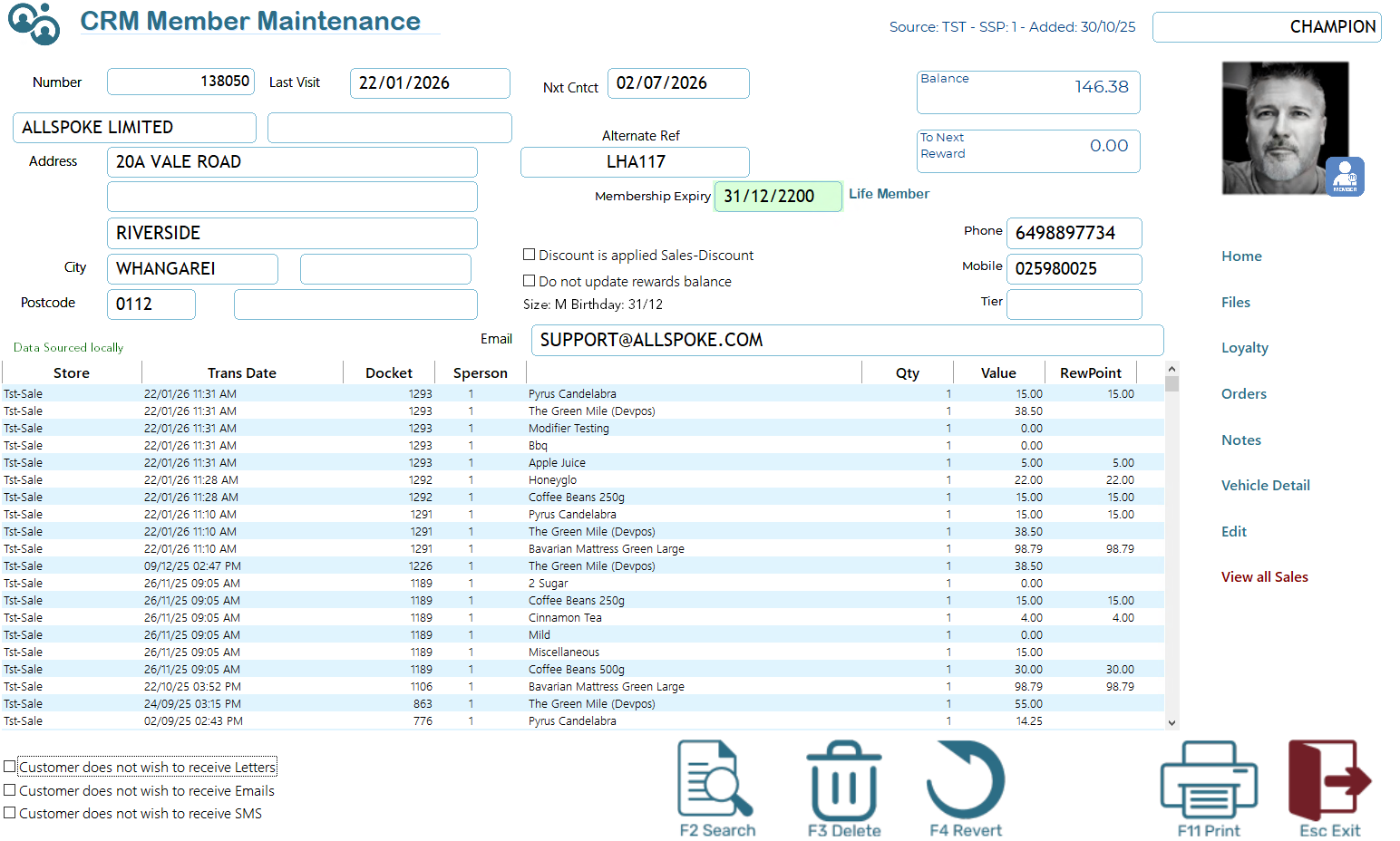
Key Fields
|
Field |
Description |
|
Number |
Unique customer number in the system. |
|
Last Visit |
Date of the most recent transaction. |
|
Nxt Cntct |
Next scheduled contact or follow-up date. |
|
Name / Company |
Customer or company name. |
|
Alternate Ref |
Optional internal reference code. |
|
Address / City / Postcode |
Customer’s billing or delivery address. |
|
Membership Expiry |
Date the customer’s membership expires and the membership type. |
|
Phone / Mobile / Email |
Contact details for the customer. |
|
Balance |
Current account balance. |
|
To Next Reward |
Points or value required for the next loyalty reward. |
|
RFM Status |
Displayed as a label (e.g., CHAMPION) indicating customer value based on Recency, Frequency, and Monetary analysis. |
|
Tier |
Optional loyalty tier or classification. |
Transaction History Table
The lower section lists recent transactions for the customer:
|
Column |
Description |
|
Store |
Location of the transaction. |
|
Trans Date |
Date and time of the transaction. |
|
Docket |
Transaction docket number. |
|
Person |
Cashier or salesperson responsible. |
|
Qty / Value |
Quantity and value of items purchased. |
|
RewPoint |
Loyalty points earned per transaction. |
Use this table to review past purchases, monitor loyalty points, or identify trends in buying behaviour
Notes
- Check the checkboxes at the bottom to indicate whether the customer does not wish to receive Letters, Emails, or SMS.
- The “CHAMPION” label reflects the customer’s RFM (Recency, Frequency, Monetary) status. Other possible labels may include LOYAL, AT-RISK, NEW, etc., depending on the customer’s purchasing behaviour.
- Membership expiry dates in the future, especially for life members, are highlighted for easy identification.
From this screen you may view club member details. Press <F11> to print a report on this Club Member. (Do not print this report to your docket printer.)
Notice in the "Member purchases" list any sales or journal made which contribute to the club database balance or membership status. For Enterprise customers transactions from other stores are in green.
Update Expiry
You may using this feature modify the members expiry. you can
- Extend the date to increase expiry.
- Set the date to a date before today - This is expire the customers membership preventing special CRM based pricing.
- Remove the expiry date completely - this will create permanent membership
An audit trail of this action will be recorded as a journal
If Membership is current the date will be green and you will see a member badge on their photo (see above).
If the customer is an expired member the expiry date will be in Red.