Filtered Search
Stock Filter Screen
Use this screen to refine which stock items appear in lists and reports by applying one or more filter criteria.
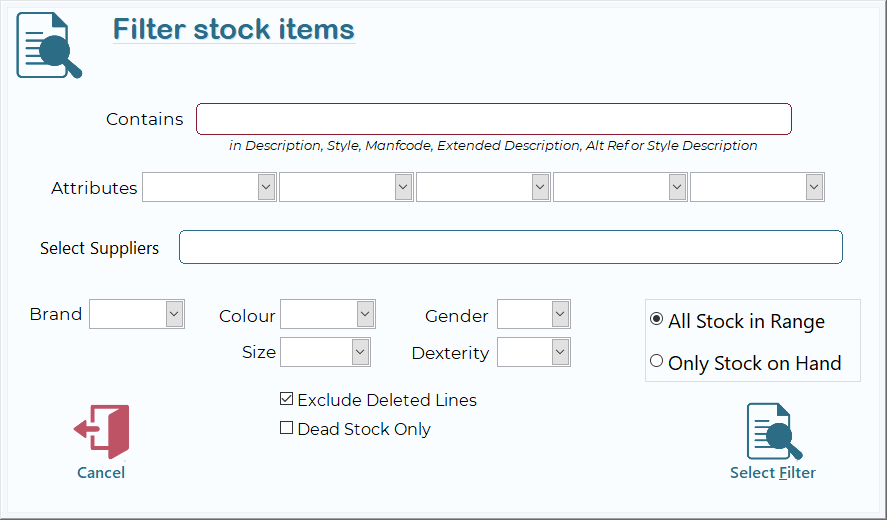
Selecting Search will display the Filter stock items screen.
|
Field |
Description & Usage |
|
Contains |
Enter free-text to match against Description, Style, Man-code, Extended Description or Alt Ref/Style Description. |
|
Attributes |
Pick up to 5 custom attributes (e.g., colour family, fabric type). |
|
Select Suppliers |
Type or select one or more suppliers to limit results. |
|
Brand / Colour /… |
Narrow by Brand, Colour, Gender, Size or Dexterity |
Stock Range & Status
- All Stock in Range
Shows every item within your chosen filters, regardless of on-hand quantity.
- Only Stock on Hand
Limits list to items with quantity > 0 in specified location.
- ☑ Exclude Deleted Lines
Omits items flagged “deleted.”
- ☐ Dead Stock Only
Returns only items with zero movement or marked as dead.
Cancel
Closes filter without applying changes.
Select Filter
Applies current criteria and returns you to the stock list/report with filtered results.
Example Workflow
- Enter “shirt” in Contains to find all items whose description includes “shirt.”
- Select Colour = Blue and Size = M.
- Choose Only Stock on Hand to avoid zero-quantity lines.
- Click Select Filter to view results of blue, medium shirts currently in stock.
Summary
This page explains how to access and use each element of the Stock Filter screen: free-text searches, attribute dropdowns, supplier selection, additional filter fields, stock-range options, and action buttons. By combining these controls, you can quickly pinpoint the exact subset of your inventory you need.